Resizing images is one of the common editing tasks — either you are preparing photos for social media, website, WhatsApp sharing or lower the file size with maintaining clarity. If you are using Snapseed, (by Google) you already have a very powerful free photo editor in your pocket. In this complete Snapseed tutorial, you can discover how to resize image in Snapseed the right way, what resizing actually does, how to avoid reducing quality, and how to get extra pro tips that many users miss. For PicsArt users, check the guide on how to resize image in PicsArt.
What Does Image Resizing Mean (And Why It Matters)?
Before we get into the steps, here’s a quick definition of what resizing is actually doing.
Resizing an image changes:
- The size (width × height in pixels)
- The file size (MB or KB)
- The way your picture is sized on websites/social network
Common reasons people resize photos:
- Upload faster on websites
- Fit for Instagram, YouTube or profile photos
- Reduce storage space
- Send via email without compression
- Improve loading speed for blogs
Snapseed does not have a menu item named “Resize,” as desktop editors do; resizing is done through the Crop, Expand and Export resolution settings.
And once you have learned this process, resizing is easy.
Where Is the Resize Option in Snapseed?
Resizing is dealt with by Snapseed in two primary ways:
- Changing image size visually (Using the Crop tool)
- Auto decimate/down sampling final output resolution on exporting.
This, all of it, jointly provides you with complete control over the size.
I’ll describe in some detail both of these approaches.
Method 1: Resize Image in Snapseed Using the Crop Tool (Visual Resize)
This process is ideal when you need:
- Change width & height
- Fit social media ratios
- Remove unwanted edges
- Resize while reframing composition
Step 1: Open Your Image in Snapseed
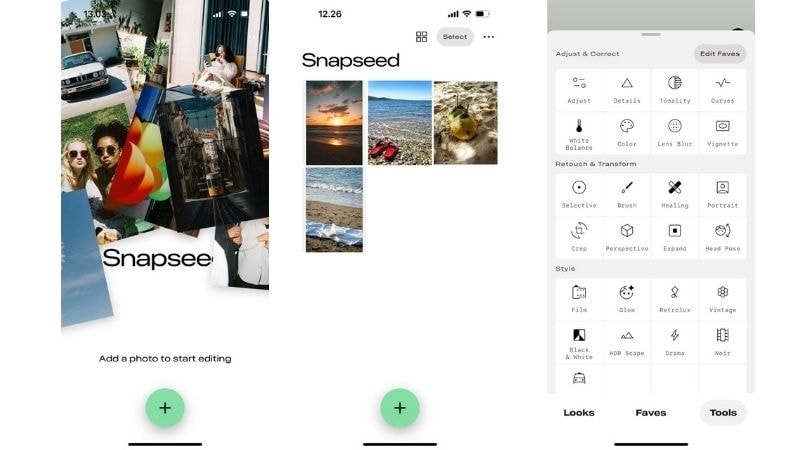
How to do it:
- Launch Snapseed
- Tap the + or Open button
- Choose your photo from gallery
A workspace will open up with your image loaded.
Step 2: Go to Tools → Crop to Resize Image in Snapseed
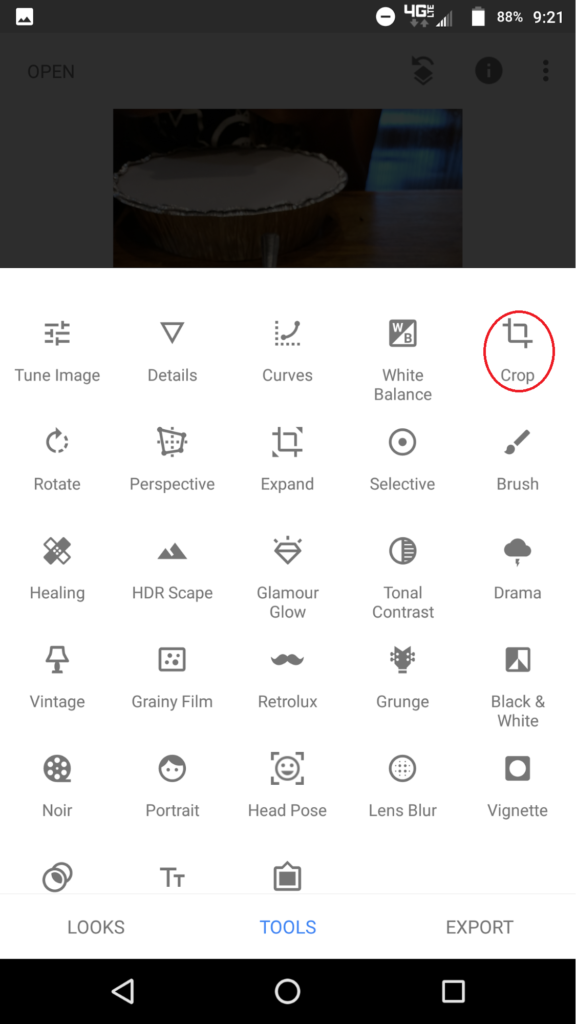
Steps:
- Tap Tools
- Select Crop
You will now see adjustable edges and fixed aspect ratios.
Step 3: Choose Aspect Ratio or Free Resize
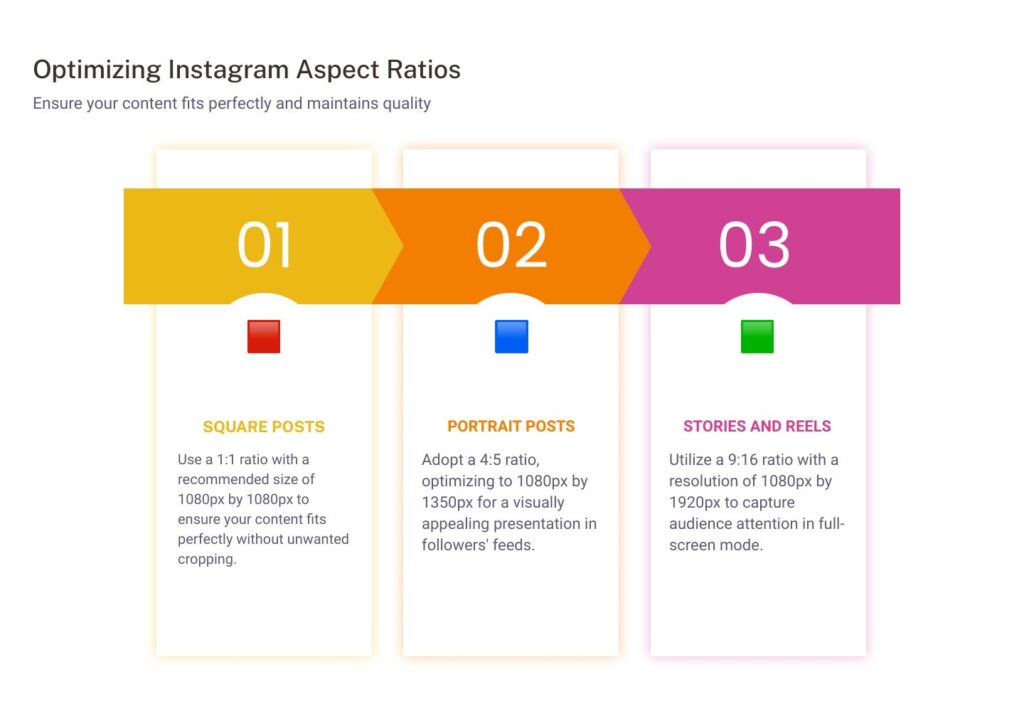
Snapseed gives preset sizes like:
- 1:1 – Instagram posts
- 4:5 – Portrait photos
- 16:9 – YouTube thumbnails
- Free – Custom resizing
Resize with drag edges, as you want — or just drag edge
Step 4: Apply the Crop
Once you’re happy:
- Tap the checkmark
Now you actually resized your image visually.
Most people use Snapseed to resize photos in this way.
Method 2: Resize Image in Snapseed by Controlling Export Resolution
This method is how you:
- Reduce file size
- Control quality
- Resize for web uploads
- Prevent huge image files
But this is where Snapseed hides resizing from most users.
Step 1: Tap Export
Tap Export at the bottom.
You’ll see options like:
- Save
- Save a copy
- Share
- Export
Step 2: Resize (Resizing) the Image
Inside Export:
- Lower resolution = Less Image Size
- Full resolution = original dimensions
Some versions show:
- Image size percentage
- Quality slider
This will reduce the size of the output image.
Step 3: Save Your Rescaled Photo
- Tap Save a Copy or Export.
And there you go: now you have a smaller, lighter image to share.
Difference Between Cropping vs Export Resizing
| Feature | Crop Tool | Export Resize |
| Changes width & height | ✅ | ❌ |
| Reduces file size | ⚠ Sometimes | ✅ |
| Keeps composition | ❌ removes edges | ✅ |
| Best for social ratios | ✅ | ❌ |
| Best for websites/email | ❌ | ✅ |
Both of them used together give the best results.
Best Practice Workflow (Pro Tip) to Resize Image in Snapseed
If you need absolutely flawless resized images:
- Crop to correct dimensions
- Export with reduced resolution
This gives:
- Correct shape
- Smaller file
- No quality loss
Common Mistakes When Resizing in Snapseed
- Over-cropping important parts
- Exporting at too low quality
- Stretching instead of cropping
- Forgetting final resolution size
- Always preview before saving.
Ideal Image Sizes (Quick Reference)
| Platform | Recommended Size |
| Instagram Post | 1080 × 1080 |
| Instagram Story | 1080 × 1920 |
| YouTube Thumbnail | 1280 × 720 |
| Website Blog | 1200 × 628 |
| Profile Photo | 400 × 400 |
Snapseed crop ratios in the ballpark of these.
Resizing Images on Snapseed: The Benefits
- 100% Free
- No watermark
- Works offline
- Professional-level quality
- Fast on mobile
- Perfect for social media creators
The Faster Free Alternative: No App Needed
If you need to resize images quickly and are not too concerned about editing the images yourself, Oualator Image Resizer only does one thing and does it well — immediate image resizing — and is a simple browser-based tool that gets you there fast.
Why It’s So Useful:
- 100% free – no login
- Resize by width & height
- Resize by percentage
- Supports JPG, PNG, WebP
- No watermark
- Works on PC & mobile
- Takes seconds, not minutes
Upload → select size → download.
Why This Online Resizer Beats Apps for Quick Jobs?
Way Faster for Simple Resizing
- No opening apps. No exporting menus.
- Just resize and go.
Truly Free & Clean Output
- No locked features.
- No premium traps.
Zero Learning Curve
- Ideal for novice users, bloggers, SEOs, developers, and students.
- Admirable for Volume or Repeated Work
- A lot faster than resizing images individually inside an editor.
Snapseed vs Online Tool – Best Use Cases
Use Snapseed when you need:
- Photo enhancements
- Filters & color correction
- Retouching before posting
Use Oualator when you need:
- Fast resizing only
- Exact dimensions or percentages
- Clean images with no watermark
- High-volume quick edits
Pro Tip: Use Both Together
Best workflow many creators use:
Snapseed → Edit image in minutes & Oualator → Resize all at once
This gives you:
- Professional quality
- Lightning-fast sizing
- Clean, optimized images
Final Thoughts
By knowing how to resize image in Snapseed you open up a whole world of more than just basic cropping. When you combine:
- Smart cropping
- Proper export resolution
- Good composition
Yes, you receive high-quality, well-sized photos each time — without Photoshop or paid tools.
Snapseed gives you professional resizing power for free, whether you are a content creator, blogger, student, or casual editor.
Frequently Asked Questions – How to Resize Image in Snapseed
Q. Is Snapseed capable of image resize in pixels?
Ans. Not with pixel numbers directly, but visually resize with crop and control resolution during export.
Q. Does resizing reduce quality?
Ans. That is only if you export over compressed. Normal resizing keeps sharpness.
Q. Should Snapseed beats online resizers?
Ans. Yes, for photo editing + resizing together.
Q. Is Snapseed capable of batch resize?
Ans. No, Snapseed is one picture at a time.

A technical content writer specializing in in-depth tech blogs, she tracks evolving technologies and industry shifts. Before writing, she leverages advanced tools for research and validation. Constantly updating her knowledge, she delivers accurate, trend-driven, and future-ready content for digital audiences.