Resizing images on an iPhone is a common requirement of users, whether you want to upload photos to a website, send images through email, save storage space, or prepare visuals for social media. Many users assume that resizing images requires third-party apps or complex tools, but Apple gives several built-in ways to resize images efficiently. In this guide, you’ll learn how to resize an image on iPhone that users already own, using apps like Photos, Files, and Mail, as well as reliable third-party options when you need more control.
Why You Might Need to Resize Image on iPhone
Before going through the steps, let’s understand why resizing of an image is important and useful:
- Helps to reduce file size for faster sharing
- Resizing images meets the upload limits on websites or apps
- Also, save storage space on your device
- Improves the loading speed for blogs or apps
- It prepares the images for professional or print use
Knowing how to resize an image on iPhone photos correctly helps you to maintain quality of the images while meeting technical requirements.
#1 Resize an Image on iPhone Via Photos App
This is the simplest and easiest built-in option that works well when you don’t want the exact size dimensions.
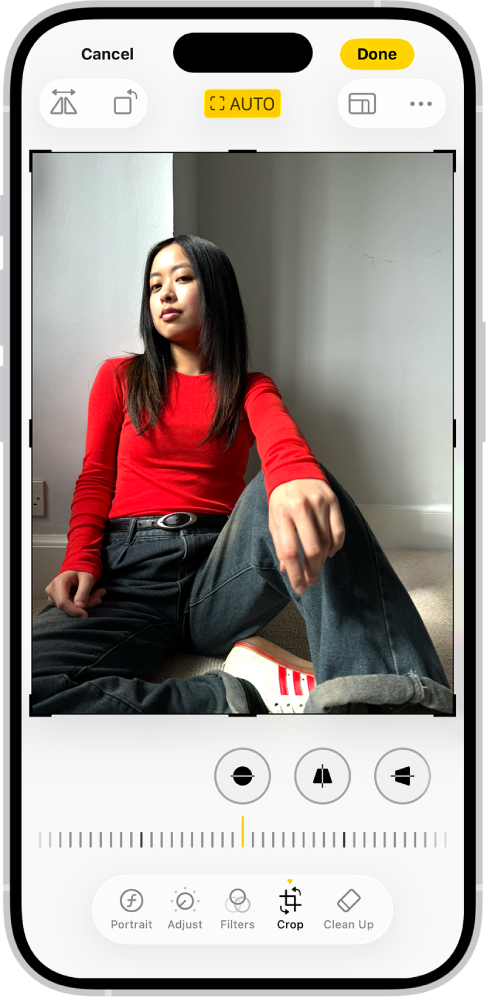
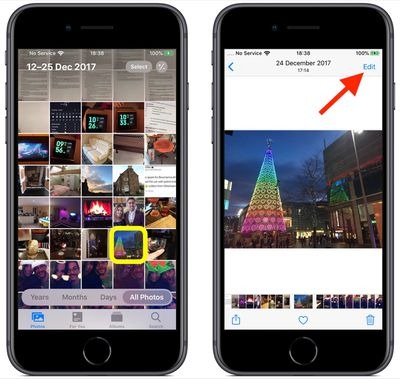
Steps to Follow the Process
- Open the Photos app on your device
- Then, select the image you want to resize
- Next, click on the Edit button in the top right corner
- Now, tap the Crop icon at the bottom
- Drag the corners to resize
- Finally, tap on the Done button
Check out the method on how to resize an image using the Photoshop application.
Best Case For Using This Method
- Uploads of Social media
- Fast resizing of images without the exact pixel values
⚠️ The above method changes composition, not image resolution. If you need precise control, use the next method.
#2 Resize an Image on iPhone Using the Files App
For accurate resizing, the Files app provides better control.
- Open the Photos app and then select the image you want to resize.
- Tap on Share and choose the Save to Files option
- Now, open the Files app on your device
- Next, long-press on the image and select Quick Look.
- Now, hit the Markup icon.
- Finally, you can resize the image and save the final version.
This method gives accuracy for resizing images on iPhone without installing any other apps.
#3 Use Email to Resize Images on iPhone
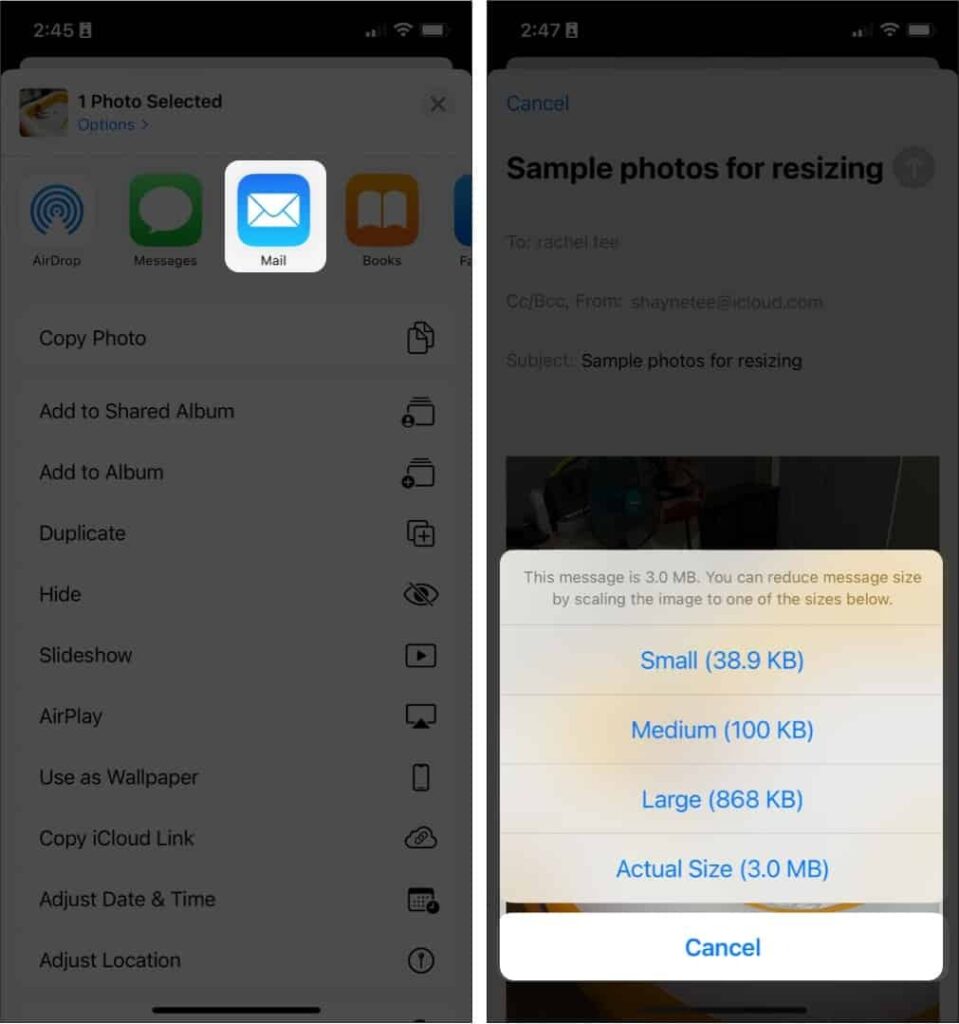
Images are resized on iPhone automatically when they are sent via Apple Mail. Below are the steps and visuals:
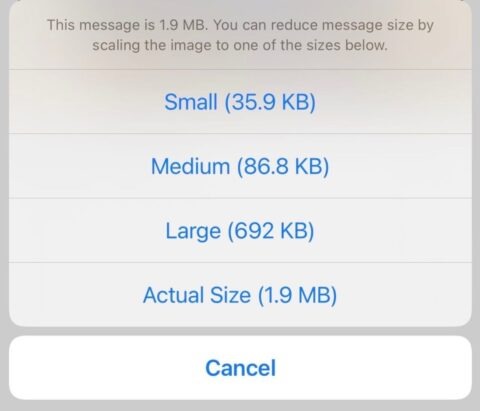
- Open the email app on your mobile
- Then, create a new email
- After that, attach an image to the email
- Next, send the email
- Finally, choose the size you want
This solution is best for beginners who are exploring how to resize an image on iPhone easily and quickly.
#4 Use the Shortcuts App on iPhone
If you resize the images, automation saves time.
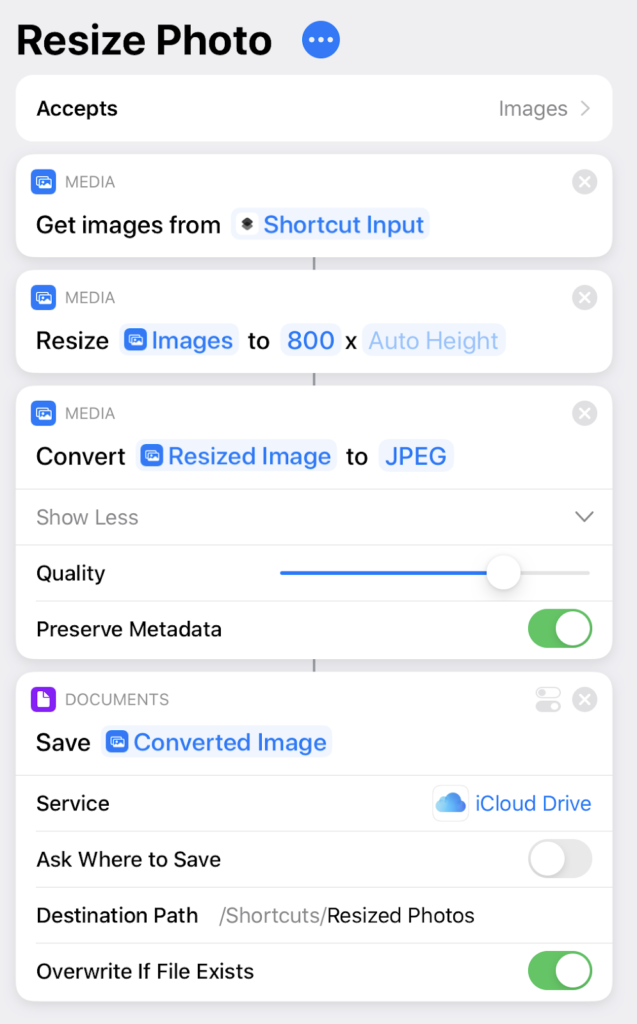
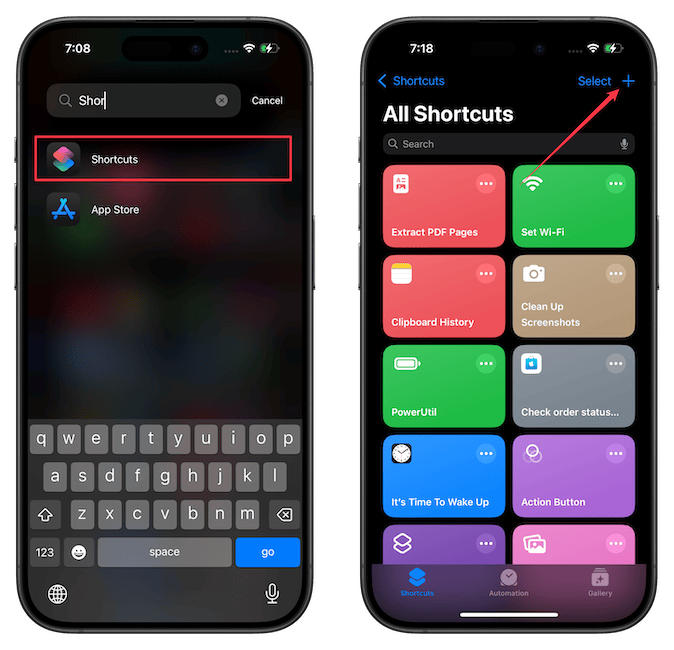
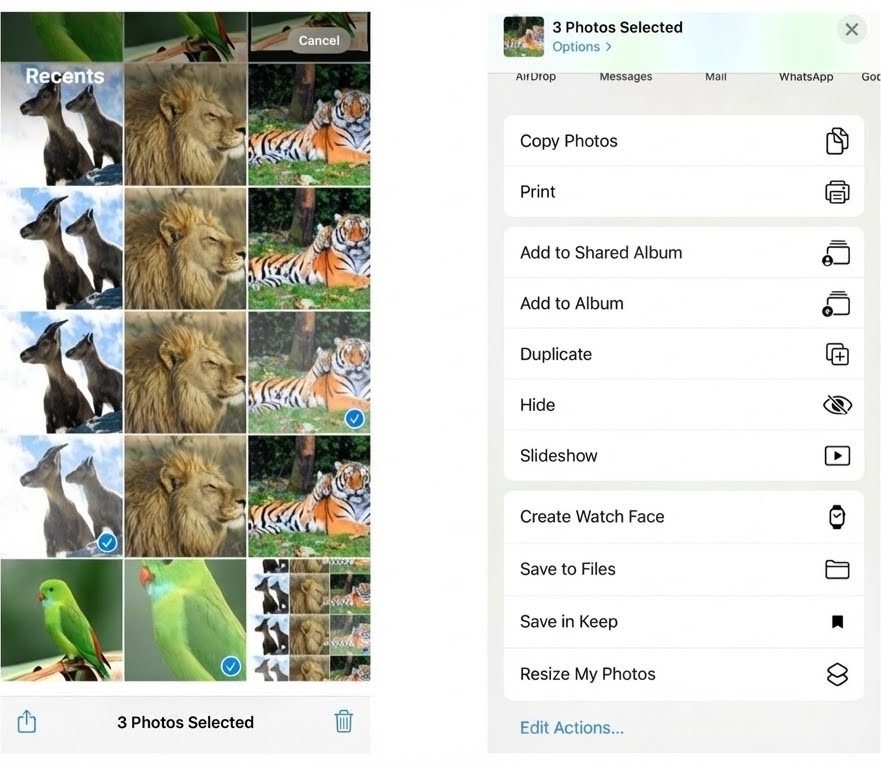
Steps to Create a Resize Shortcut
- Open Shortcuts on your mobile
- Tap on the + icon to create new shortcut
- Add action → Resize Image
- Set the width or height of the image
- Save the created shortcut
Now you can resize multiple images instantly by using this automation method, which is ideal for professionals who are repeatedly dealing with how to resize an image on iPhone workflows.
#5 Third-Party Apps For Advanced Control
When manual tools aren’t enough, third-party apps give solutions.
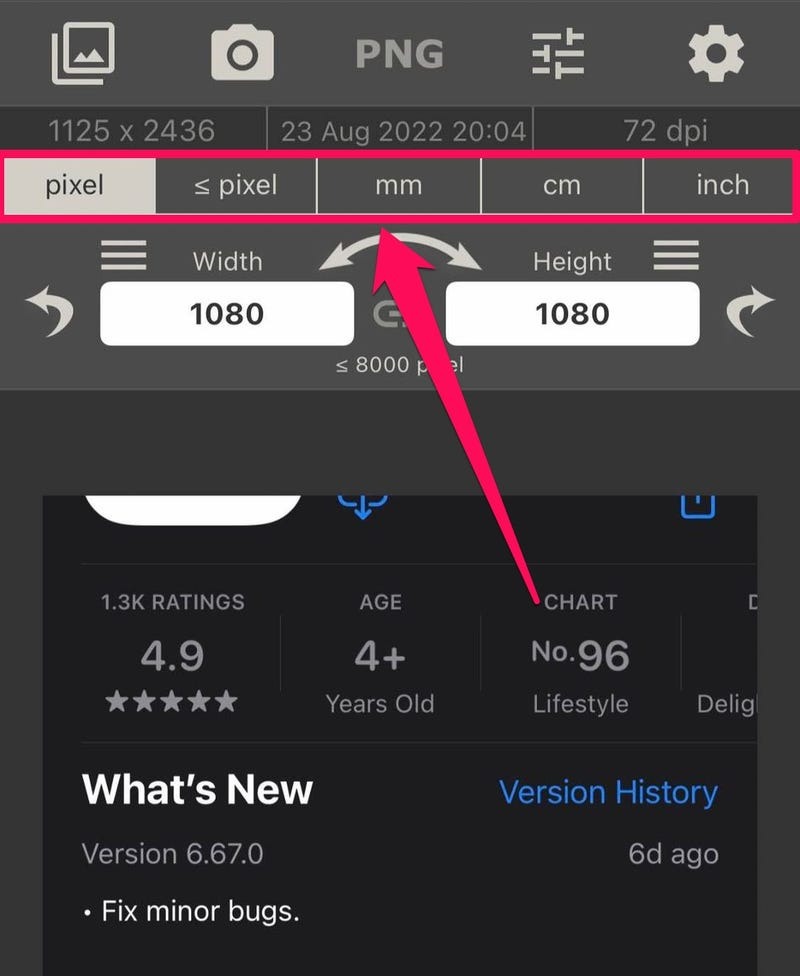
Apps That are Recommended
- Size of the image – Exact pixel, inch, and cm control
- Pixel Resize – Batch resizing & compression
- Canva – resizing visuals for social media
These apps are best when users are learning how to resize an image on iPhone for professional marketing.
Common Mistakes You Should Avoid
- Stop the Upscaling of images, which causes blur
- Resizing of images repeatedly loses quality
- Ignoring the aspect ratio
- Stop using screenshots instead of original images
- Always keep a backup of your original image before resizing it.
Best Image Sizes for Common Uses
| Purpose | Recommended Size |
| Instagram Post | 1080 × 1080 |
| Website Blog | 1200 × 628 |
| Email Attachment | Under 1 MB |
| 1600 px width |
Understanding these standards improves results when mastering how to resize an image iPhone photos effectively.
Resize Single or Multiple Images Easily on iPhone (No Installation)
If you have an iPhone and want to avoid the hassle of working with different applications to resize photos, there is a much easier way to resize photographs. The Oualator Image Resizer allows you to resize pictures from your iPhone web browser – no app, no learning curve! Perfect for when you need to make a quick edit on the go, from your phone, or simply want quick results without the technical stuff. This online tool seamlessly works in iPhone Safari and any mobile browsers, whether resizing images for Social media, websites, or messaging apps. Here are the steps to resize an image on your iPhone:
- Visit and open this online and free Tool
- Here, you just need to upload Image, using the tap button and choose a photo from your iPhone’s gallery, or from the Files app if iCloud Drive is enabled.
- After that, add the desired height and width, or opt for a preset measurement.
- Check the Maintain Aspect Ratio checkbox to ensure that your image does not appear warped.
- Select “Resize Image” to resize your image.
- Download the resized photo directly to your iPhone.
Why is this tool is iPhone-friendly alternative?
- Completely mobile-ready and optimized for iPhone mobile browsers
- No app download, no account registration
- Batch image resizing
- Maintain the quality of the image while making the file smaller
- Supports popular formats such as JPG, PNG, WEBP, and others
- Perfect for social media posts, blogs, and images for websites
- Secure processing with instant downloads
- Completely free and accessible anytime
End Note
Now that you know how to resize an image on iPhone, on which users depend, you can confidently optimize photos for sharing, storage, and professional use. Resizing of images on iPhone doesn’t need pro techniques or costly tools. Apple provides easy options for everyone, whether using built-in tools, automation, or third-party apps.

An experienced technical content writer with expertise in crafting insightful technology blogs. He studies emerging trends, analyzes tools before drafting, and ensures every piece reflects the latest innovations. His content blends clarity, research, and up-to-date technical understanding.