If you work with documents that include formulas, references, dates, trademarks, or footnotes, you’ll often need small raised characters above the normal text line. Learning how to make superscript in Word can instantly make your documents look more professional and academically correct.
Whether you’re a student, blogger, researcher, or office professional, this in-depth guide will walk you through every method — from toolbar buttons to keyboard shortcuts and advanced formatting tips. To check a certain relative guide, check the article on how to resize an image on Mac?
What Is Superscript and When Should You Use It?
Superscript is a smaller character positioned slightly above regular text. You’ll commonly see it used for:
- Mathematical powers (x², y³)
- Chemical formulas (H₂O becomes H²O in formatting context)
- Footnotes and references
- Trademark symbols (™)
- Ordinal numbers (1st → 1ˢᵗ)
Using it properly improves readability and formatting accuracy.
Method 1: Using the Superscript Button in the Ribbon Toolbar
This is the easiest and most beginner-friendly way.
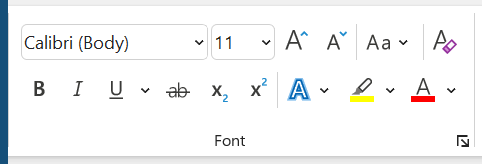
Step-by-Step:
- Open your Word document
- Select the text you want to raise (example: the 2 in x2)
- Go to the Home tab
- Click the Superscript (x²) icon in the Font group
Your selected text will instantly move upward and shrink slightly.
Best for:
- Casual users
- Quick formatting
- Visual learners
Method 2: Keyboard Shortcut (Fastest Way)
Once you memorize this, you’ll never use the toolbar again.
On Windows:
Ctrl + Shift + =
On Mac:
Command + Shift + =
How it works:
- Highlight your text
- Press the shortcut
- Superscript activates instantly
Press it again to return to normal text.
This is the most efficient method if you frequently format equations or references.
Method 3: Using the Font Settings Dialog Box
This offers more precision and works in every Word version.
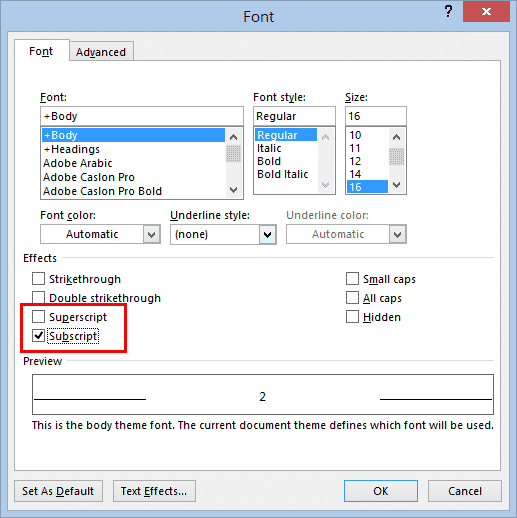
Steps:
- Highlight the text
- Press Ctrl + D (Windows) or Command + D (Mac)
- In the Font window, check Superscript
- Click OK
This method is perfect when formatting academic or technical documents.
Method 4: Automatically Superscript Numbers (Ordinals Trick)
Word can automatically superscript things like:
1st → 1ˢᵗ
2nd → 2ⁿᵈ
3rd → 3ʳᵈ
To enable:
- Click File → Options → Proofing
- Select AutoCorrect Options
- Go to AutoFormat As You Type
- Check “Ordinals (1st) with superscript”
Now Word formats them instantly as you type.
How to Turn Superscript Off?
Many beginners get stuck typing tiny text forever 😄
To disable:
- Click the superscript icon again
- Or use the shortcut again
- Or uncheck it in Font settings
Simple toggle on, toggle off.
Common Uses with Examples
| Normal Text | Superscript Version |
| x2 | x² |
| cm3 | cm³ |
| 1st | 1ˢᵗ |
| H2O | H²O (formatted) |
| Ref1 | Ref¹ |
Pro Tips for Perfect Formatting
- Use keyboard shortcuts for speed
- Keep superscript minimal — don’t overuse
- Match font size consistency
- Use for formulas and references only
Overusing superscript can hurt readability.
Troubleshooting Superscript Issues
Superscript looks too small?
Open Font settings and slightly increase font size.
Shortcut not working?
Check if another program is overriding the shortcut.
Text spacing looks odd?
Use consistent font families.
Why Superscript Matters in Professional Documents?
Using proper superscript:
- Improves academic credibility
- Makes formulas readable
- Enhances clean design
- Prevents confusion
Whether writing research papers, school assignments, or business documents, mastering formatting basics goes a long way.
How to Make Superscript in Word? (Free Alternative)
For Word users who need to add superscript text in seconds — without digging through menus or formatting panels — there’s an easier and faster way to get it done.
Yes, Microsoft Word has built-in formatting options that let you apply superscript for footnotes, formulas, and references. And they work fine for basic use. But sometimes the process feels slow — clicking through font settings, repeating steps again and again, especially when you’re working with lots of text.
That’s where the Oualator Superscript Tool makes everything effortless.
This is a clean, browser-based solution that instantly converts your normal text into superscript — no installs, no sign-ups, no complicated formatting. Just paste your text, convert it, and copy the superscript version straight into your document.
Perfect for students, bloggers, researchers, and anyone who wants quick formatting without frustration.
Why Word Users Love This Online Superscript Tool?
Word’s built-in tools are helpful — but this online option removes all the hassle:
- Completely free with no account required
- Instantly converts text to superscript format
- Works on any device (Mac, Windows, mobile, tablet)
- Copy-paste ready output in seconds
- Super simple interface — beginner friendly
- No formatting glitches or extra symbols
- Works perfectly with Word, Google Docs, and emails
When This Tool Beats Using Word’s Formatting?
Word works great — but this online superscript tool is often quicker and smoother for everyday needs.
Faster for Quick Formatting
Paste → Convert → Copy → Done.
No opening font panels or remembering shortcuts.
Truly Free & Unlimited
Convert as much text as you want — no restrictions.
Zero Learning Curve
Anyone can use it instantly — no tutorials required.
Perfect for Notes, Formulas & SEO Content
Great for writing references, chemical formulas, math exponents, or stylized text fast.
Word’s Built-In Superscript vs Online Tool — Which Should You Use?
Use Word’s Superscript When You Need To:
- Format directly inside a document
- Mix superscript with heavy text editing
- Work offline
- Apply advanced typography styles
Use the Above Mentioned Tool When You Want:
- Instant formatting without steps
- Quick copy-paste superscript text
- No menu clicking or shortcuts
- Fast repetitive conversions
Best Approach? Use Both Smartly
Think of it like this:
#1 Use Word for writing, editing, and full document creation
#2 Use the aforementioned utility for lightning-fast superscript formatting
That way you get the power of Word — plus the speed of a dedicated superscript converter.
Final Thoughts
Now you fully understand how to make superscript in Word using every available method — toolbar buttons, shortcuts, font settings, and automatic formatting.
Once you start using shortcuts, you’ll format text faster than ever.
If you regularly create equations, references, or structured documents, this skill alone will save you hours over time.
Frequently Asked Questions
Q1. What is the shortcut key to make superscript in Word?
The shortcut to apply superscript in Word is:
Windows: Ctrl + Shift + =
Mac: Command + Shift + =
Simply select your text, press the shortcut, and Word will instantly convert it into superscript. Press it again to return to normal text.
Q2. How do I remove superscript formatting in Word?
To turn superscript off:
• Select the superscript text
• Click the superscript (x²) button again
OR
• Use the same keyboard shortcut again
This toggles the formatting back to normal.
Q3. Can I make superscript automatically in Word?
Yes! Word has an AutoCorrect feature that automatically formats ordinal numbers like:
1st → 1ˢᵗ
2nd → 2ⁿᵈ
You can enable this by going to:
File → Options → Proofing → AutoCorrect Options → AutoFormat As You Type
Q4. Why is my superscript too small in Word?
Superscript text appears smaller by default. If it looks too tiny:
- Open the Font dialog (Ctrl + D)
- Slightly increase the font size
- Keep superscript checked
This helps maintain readability while keeping proper formatting.

An experienced technical content writer with expertise in crafting insightful technology blogs. He studies emerging trends, analyzes tools before drafting, and ensures every piece reflects the latest innovations. His content blends clarity, research, and up-to-date technical understanding.