Whether you are preparing a business report, academic paper, resume, cover letter and other collateral materials for your job hunting or overall tech career work related-soon-to-be-project, brochure or online magazine to promote new products or services (or anything else between), visual aids such as charts and diagrams can both clarify hard-to-explain ideas and help improve the look of professional content. That being, said oversized images can really mess up a document’s layout fast. Oversized images cause text to be jumbled, and undersized images are rendered grainy and weak. That’s why it pays to know how resize an image in Word and do other important things with your images in the program.
This step-by-step guide goes down the list of each practical way to resize images in Word, from child’s play (dragging an image, obviously!) to fine-tuning options for absolute size control. By the end of this article, you’ll learn ways to resize while maintaining quality and producing professional-looking documents.
Why Image Resizing Matters in Microsoft Word?
Usually, the layout of a document is based on visual symmetry. Oversized images may have a negative impact on text layout, resulting in awkward page breaks or exceeding the margins. Second, image quality is a big deal – resizing an image the wrong way can distort visuals to a point that they look less than professional. Third, the size of files can be a problem. Moreover, a large picture adds on to the size of your file and might become difficult for you to easily share or upload.
By learning how to resize an image in Word, your documents will look clean and load quickly without all the unwanted visual noise that would otherwise distract the reader from the information.
#1: Resize an Image in MS Word Using Corner Handles
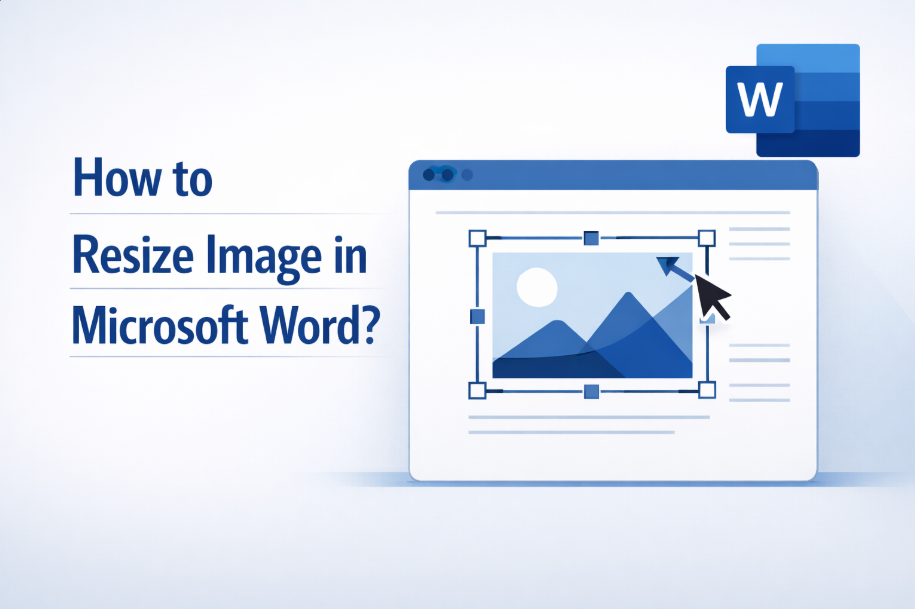
The easiest and most frequently used technique is to resize images manually when handles show up at the four corners.
Step-by-Step Instructions:
- Open your Word file and click the image that you want to resize.
- Small round handles can be seen in the corners and edges of the image.
- Click and drag a corner handle in to make the image smaller, or out to make it bigger.
- Let go of the mouse button when you get to desired size.
Why Corner Handles Matter?
By dragging a corner handle, the original proportional of an image is maintained to avoid distortion. This is the easiest and fastest method around for everyone who is looking how to resize image in Word without losing quality.
What to Avoid?
Don’t drag the side handles unless you want to deliberately stretch the image long or wide. Resizing from the sides can create a distorted look, which renders charts, photos and logos unprofessional.
#2: Resize Images in Word Using the Picture Format Tab
For those who are more concerned about precision, Microsoft Word provides built-in sizing tools in the Picture Format tab.
Accessing the Picture Format Tools
- Click on the image.
- Click on the Picture Format tab in the top menu ribbon.
- On the right, find the Size group.
Here you’ll find options for Height and Width measurements.
Adjusting Image Size Precisely
- Type in an exact height or width.
- Make sure the “Lock aspect ratio” box is checked so it will not be distorted.
- Then Word automatically adjusts the other dimension in proportion.
This approach is especially useful when the documents need to comply with a particular format (such as in an academic context, or their company’s templates.) Knowing how to resize an image in Word by size with numbers gives you professional-level control.
You may also like how to resize an image in InDesign.
#3: Right-Click and Use Size and Position Settings
A similar useful method is with the Size and Position dialog box.
How to Access It:
- Right-click on the image.
- Choose the Size and Position option from the menu.
- Open the Size tab.
Advanced Options Explained:
- Set exact height and width.
- Scale image size by percentage.
- Lock aspect ratio.
- Select relative positioning in Page, Margin, or Paragraph.
It’s especially beneficial when you require uniformity among a series of images, or if you’re laying out something more complex like newsletters or manuals.
By learning how to resize an image in Word with this dialog you have less trial and error.
#4: Resize Images While Maintaining Document Layout
Somehow when you resize images, text move or layout goes here and there. Word provides wrapping options to assist in managing things.
Understanding Text Wrapping
After you click on the image you will see a Layout Options icon. Common wrapping styles include:
With Text – Image is treated as text and goes with a paragraph.
Square – Text is wrapped around the image in a square fashion.
Tight – Text wraps around the shape of your image.
Text Behind – A picture that appears behind the text.
Wrap Text – Picture appears in front of paragraph.
Picking the right wrapping style will set you up when resizing images so that your rest of your layout does not fly visually apart. This is the most important step in how to resize an image in Word without losing the structure.
#5: Resizing Multiple Images at Once
If you have multiple images that need to be scaled, it may take a while.
How to Resize Multiple Images:
- Hold down the Ctrl key.
- Select each picture you want to resize.
Use the corner handles, or use Size tool, if you prefer to resize them all at once.
Benefits of Batch Resizing:
- Maintains consistency across images.
- Saves time.
- Perfect for galleries, webcams, flash tutorials or other purposes.
Not only does it look better, but you can also resize an image in MS Word more easily if the original has a higher resolution.
Common Mistakes to Avoid When Resizing Images
Even Word pros mess up image-resizing. Here are some common pitfalls:
Stretching Images
If you use side handles instead of corner ones that’s actually going to stretch the image and change proportions.
Ignoring Resolution
Images with low resolution can look fuzzy when you blow them up. Always start with high-quality images.
Overcrowding Pages
Cramped pages with too many big images diminish readability. Fit images to content not the other way around.
By avoiding these mistakes you will only then have a more professional and desirable document.
Optimizing Image Quality After Resizing
You can resize images and have them maintain quality if you do it the right way.
Compress Images Smartly
- Click on the image.
- Click on Picture Format → Compress Pictures.
- Select the resolution as needed (e.g., Print or Web).
When to Compress?
You can compress images after reduction to keep the clarity and reduce file size. This is an add-on to what we learned about how to resize an image in Word and still be efficient.
Best Practices for Professional Documents
Here are some best practices to ensure polished results:
- Keep image sizes consistent.
- Align images with margins.
- Use captions for clarity.
- Preview print layout before finalizing.
- Don’t resize screenshots too small as text might be unreadable.
These practices will lay down that foundation and give your documents a clean, professional look, rather than the appearance of being cluttered or thrown together.
Troubleshooting Image Resizing Issues
Resizing can be somewhat weird at times. For example, images might snap back to their original size after you modify them and/or they may not resize at all.
Possible Solutions
- Determine if image is a background or header element
- Ensure the document isn’t protected.
- Try changing text wrapping settings.
- Unlock aspect ratio if necessary.
Troubleshooting When Learning How to Resize an Image in Word When working with complex templates or shared documents.
How to Resize Image in Word? (Alternative Solution)
When resizing images directly within Microsoft Word is too restrictive or seems to hamper performance of the document, using a third-party image resizer is always a better option. A good free option is a Oualator Image Resizer tool. This online free tool helps you resize your image before inserting it into Word easily which gives you a much better control over your the dimensions and quality of your image from the get-go. Being fully browser based, no software installation or account registration is required. All you have to do is upload your Image, scale it, and download the image, The resized image can then easily be placed in your MS Word file. It is especially useful for large images, scanned documents, and high resolution photos.
Key Features of this Advanced Online Tool:
This utility has some practical features that make it a good replacement for resizing in a document:
- 100% Free = No Hiddens Limits
- Saved us the trouble of registration
- Image conversion in the blink of an eye directly to your computer
- Adjustable width and height for resizing toilet mats
- This allows resizing without loosing quality
- Accessible via browser – works on all devices and operating systems
- Great for high-resolution images that can slow down your MS Word files
This also proves particularly useful for users who manipulate images often and need a predictable outcome every time.
Why This Method Is Better Than Resizing Directly in Word?
Utilizing an external image resizer like the above mentioned, has several advantages over resizing images in Word. For one thing, doing it this way helps to cut down the file size of documents you are editing with Word, because the photos are optimized upon insertion. This makes your document more efficient and at the same time, easier to share via email or on cloud platforms. When you resize pics ahead of time, it prevents layout shifts, text wrapping problems and unintended image distortions that can occur when images are adjusted directly in Word.
And fourth, it permits greater accuracy and ensures consistency across a document especially when multiple pictures must adhere to the same dimensions. Combining a Word file and an external tool together will achieve optimal effects. Learning how to resize an image in Word is made much easier if you start with a pre-sized image from a tool like Oualator. This will sharply improve document quality across-the-board, and save scads of time.
Key Takeaways
In addition to guaranteeing your text rises to a high standard, it is also qualified for rapid manual adjustments, sophisticated control over size and layout management. MS Word provides various methods to shrink pictures so they fit on one page.
When you’ve mastered the way to resize image in a Word document completely then you command more control over the design of documents, save time and can show information in a clear manner. Whether you are a student, professional or content creator, once this skill becomes your own personal property it will not be easy to leave any written work that is produced from now on.

A technical content writer specializing in in-depth tech blogs, she tracks evolving technologies and industry shifts. Before writing, she leverages advanced tools for research and validation. Constantly updating her knowledge, she delivers accurate, trend-driven, and future-ready content for digital audiences.